Reimbfast Process Flow
The Process Fabric in Torus automates workflows based on UF events, triggering actions as per the defined Process Flow Diagram (PFD).
Always click Save after making any changes to your artifact to ensure updates are stored successfully.
Create an Artifact
Follow the steps below to create a new artifact
- Navigate to the Dashboard → Process Fabric
- Open the Artifact section by clicking the "Artifact" tab in the navigation bar.
- Navigate to the application path: My Artifacts → Global-App-Group → reimbfast-app
- Click the (+) button at the bottom-left to create a new artifact.
- Enter a unique name for the artifact (e.g., ReimbfastProcessFlow).
- Click Create Artifact to confirm.
- Click Save to save the artifact and close the window.
Node Gallery
- The Node Gallery provides key building blocks for Process Flow . Each node type serves a specific function:
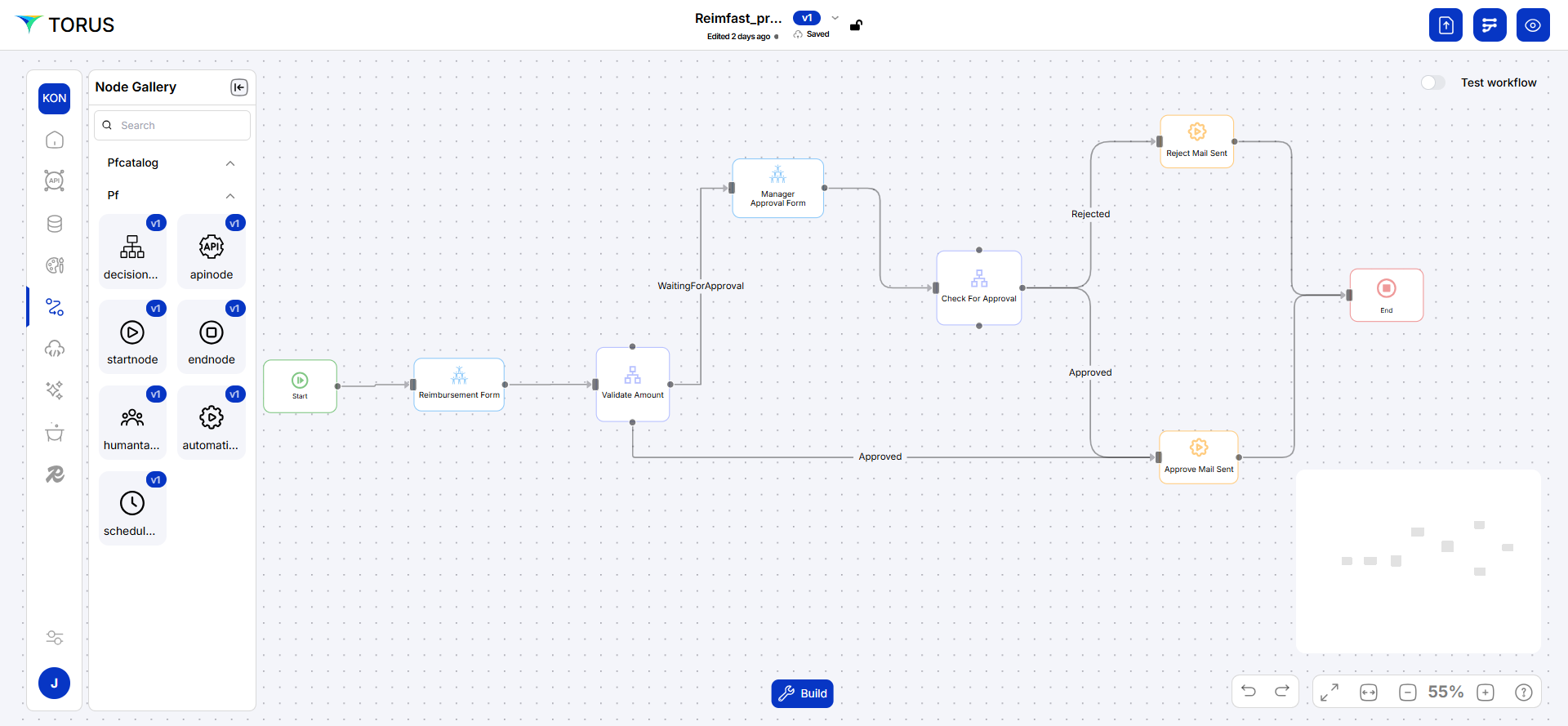
| Node | Description |
|---|---|
| start node | Marks the beginning of a workflow. |
| Human Task node | This node allows the manager to approve the claims manually |
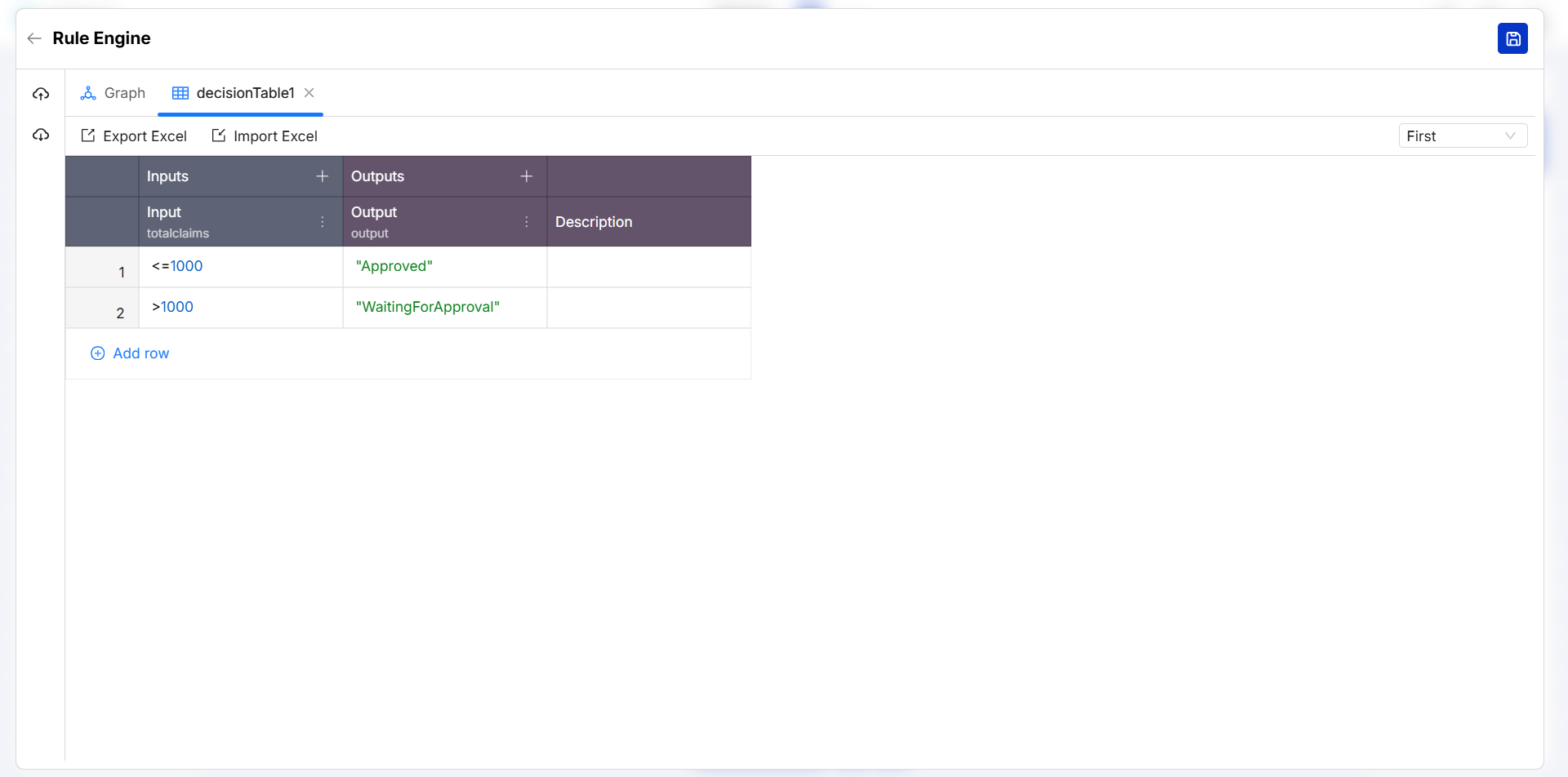
| Decision node | This node evaluates if the claim amount exceeds 1000—if so, it routes to the HR approval form for manual review; otherwise, the claim is auto-approved. |
| Automation node | This node enables seamless email communication through the workflow automation tool, eliminating the need for manual messaging. |
| End node | This node signifies the completion of a process, marking the final step in the workflow execution. |
Build Process Flow Diagram
- Drag and drop below nodes from the node gallery
- startnode,
- Human Task node,
- Decision node ,
- Automation node,
- End node
- Arrange nodes and connect them.
- Right-click on each node to configure properties.
We define the rule as below for decision node.
Automation Node
- Enabling this node allows the system(n8n) stream data from AMQ for automated approvals and RMQ for automated rejections.
Orchestration
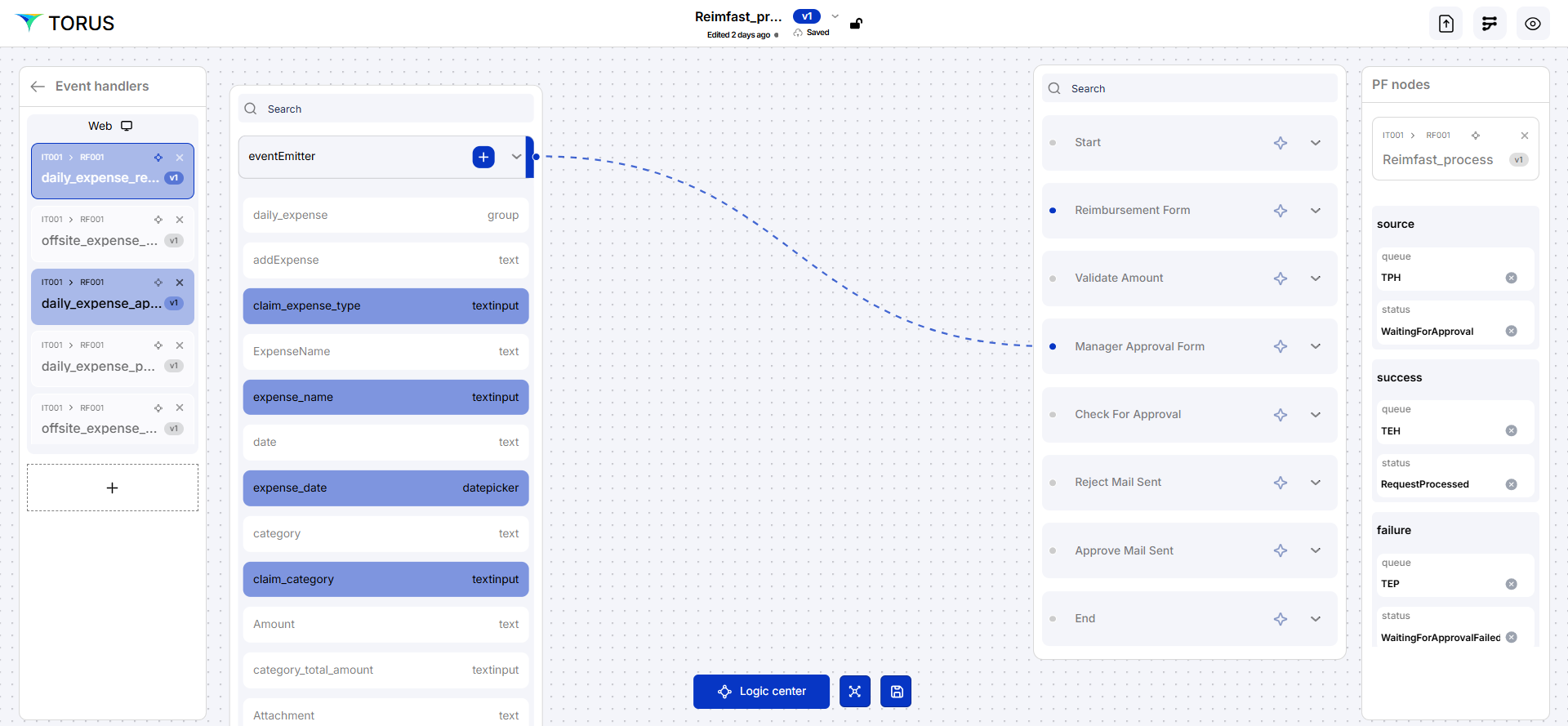
Orchestration manages the interaction between Processs Fabric (DF) and UI components. It enables Node-level data flow, and saves the updated form, enables the status of the claim whether approved, rejected or pending based in the given condition
Refer the below screenshot to connect and update the properties
Here, we map connections between event handlers and their corresponding UI components, updating the necessary properties to ensure smooth interaction and functionality across the application.
Debug Process Flow
Debugging is the process of identifying, analyzing, and fixing errors (bugs) in software or workflows. It helps ensure that the logic and flow of a program or automation work involves
- Setting breakpoints
- Running the code step-by-step
- Inspecting variables or data
- Observing how the system behaves at each stage
The goal is to catch issues early, improve reliability, and ensure smooth performance.
