API Fabric
The API Fabric streamlines data management by handling data structures, processing, and transformations to enable seamless data flow.
Data Persistence
Data persistence in API Fabric is managed using a relational database (PostgreSQL). Each integrated application requires a dedicated database table schema. Below are the steps and UI-based guidelines for creating and managing database schemas.
Creating a New Artifact
To create a new artifact within the API Fabric, follow these UI steps:
- Navigate to the Dashboard: Go to Dashboard → API Fabric.
- Open the Artifact Section: Click on the Artifact tab in the top navigation bar.
- Locate the Application: Navigate to My Artifacts → Global-App-Group → reimbursement-app.
- Create an Artifact: Click the (+) button at the bottom.
- Enter the Artifact Name: Provide a unique name for the artifact.
- Confirm Creation: Click Create Artifact.
- Save the Artifact: Click Save and close the window.
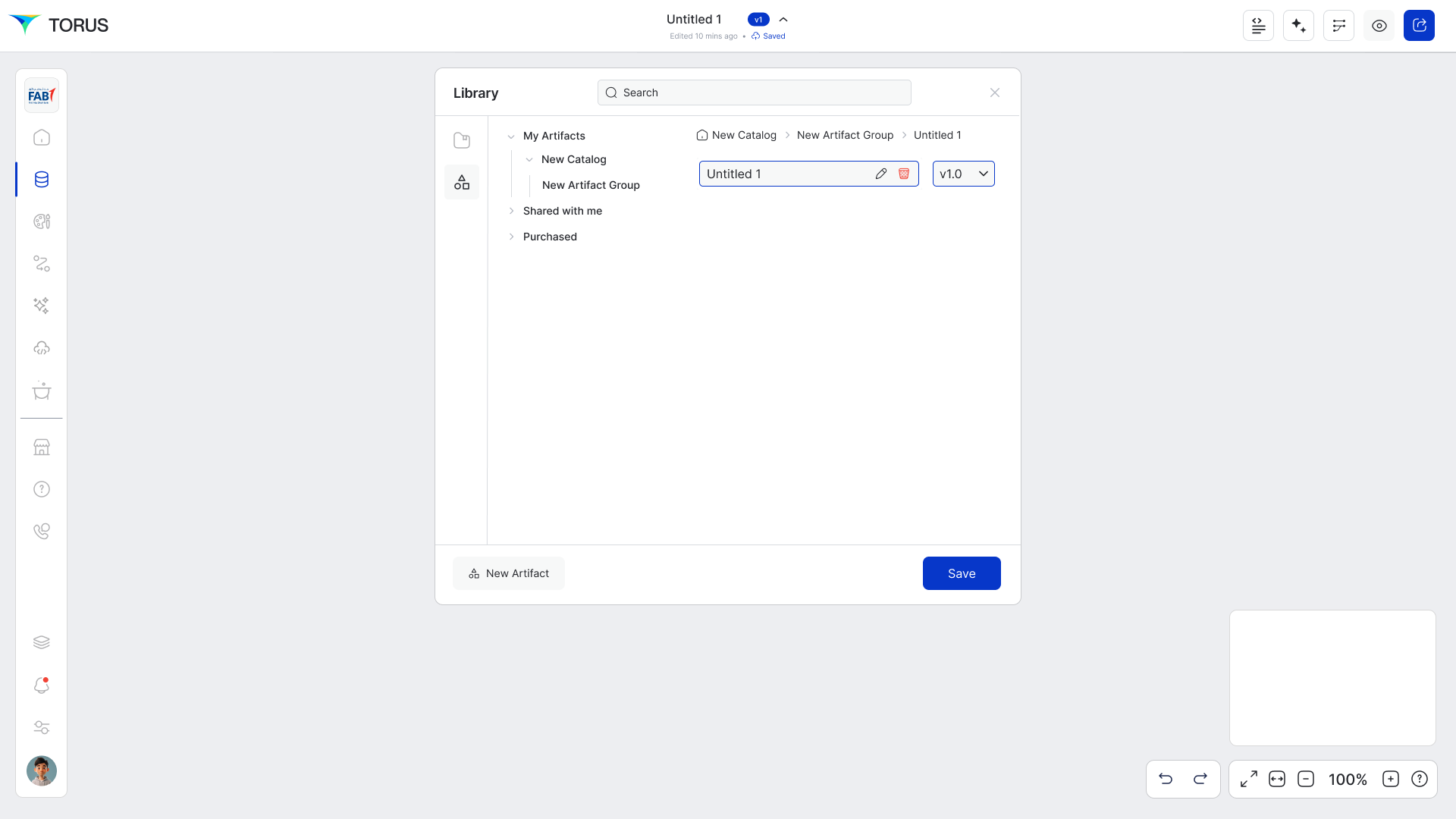
The artifact acts as the foundation for schema design.
Node Gallery
Although API Fabric does not use traditional nodes like other fabrics, the Entity-Relationship Diagram (ERD) components serve as the key building blocks for schema design. These components include:
- Custom Table: Represents a database table in the schema.
- Primary Key: Defines the unique identifier for each record.
- Foreign Key: Establishes relationships between tables.
- API Methods: Controls the exposure of database tables as REST APIs.
These elements are managed through the ERD interface, allowing for a visual approach to database structuring.
Designing the Entity-Relational Diagram (ERD)
Adding Tables to ERD
- Open the Node Gallery (left panel) and drag a 'Custom Table' node into the workspace.
- Right-click on the node to access the context menu, which includes:
- Edit Node
- Cut / Copy / Paste
- Delete (with keyboard shortcut support)
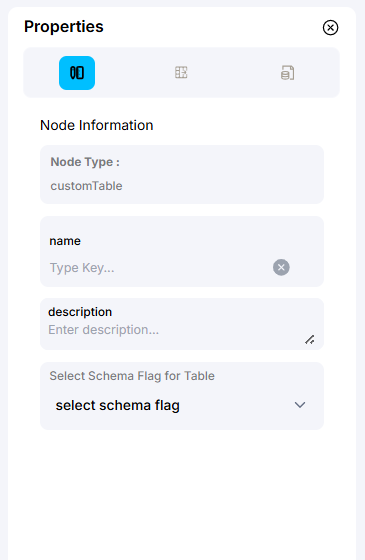
Configuring Table Properties
- The first tab in the Node Properties panel customizes the visual settings (e.g., node name).
- The second tab defines table attributes, including:
- Column Names
- Data Types
- Constraints (e.g., Primary Keys, Defaults)
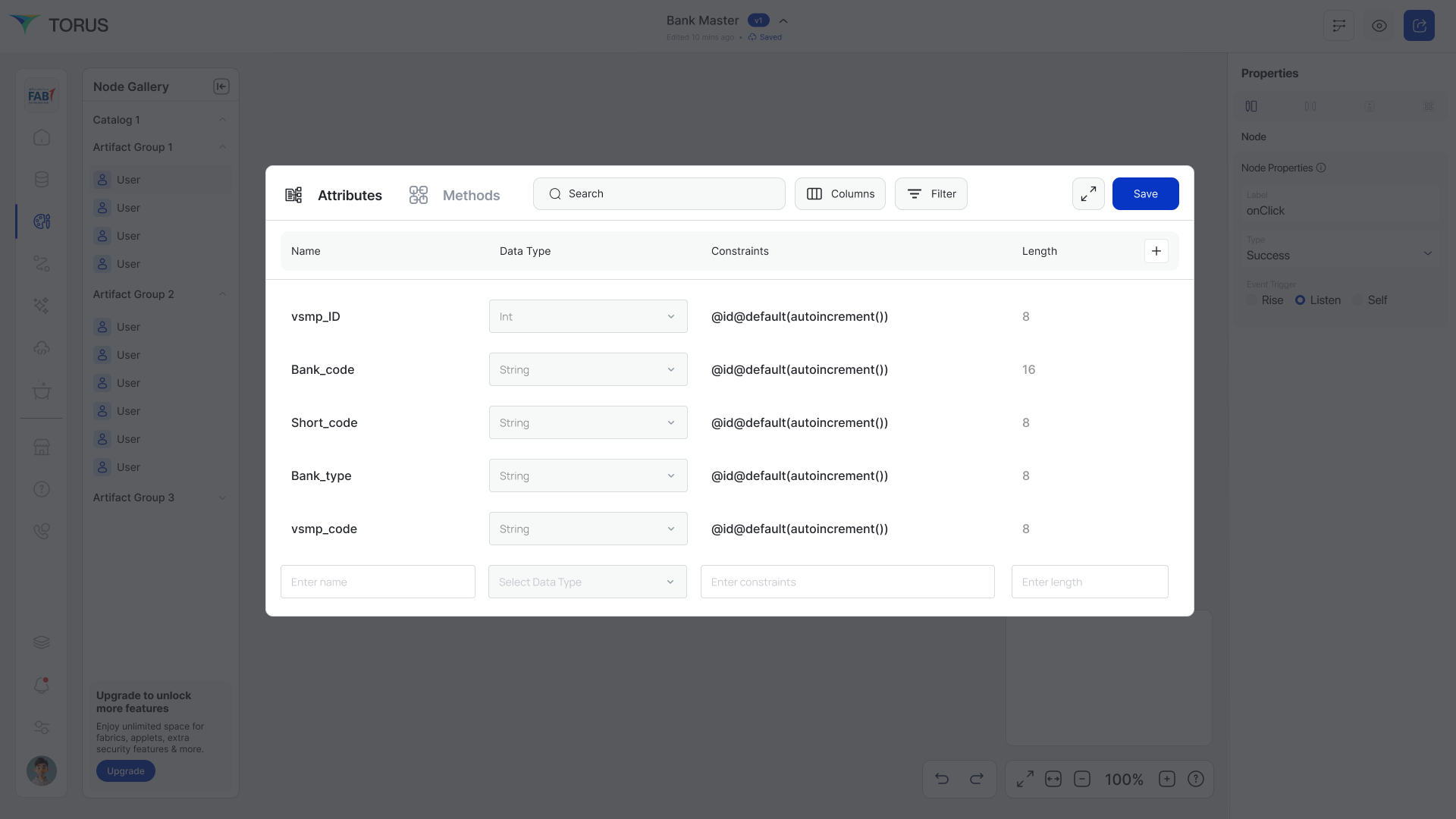
@id @default(autoincrement()) // Defines the Primary Key
Setting Up API Methods
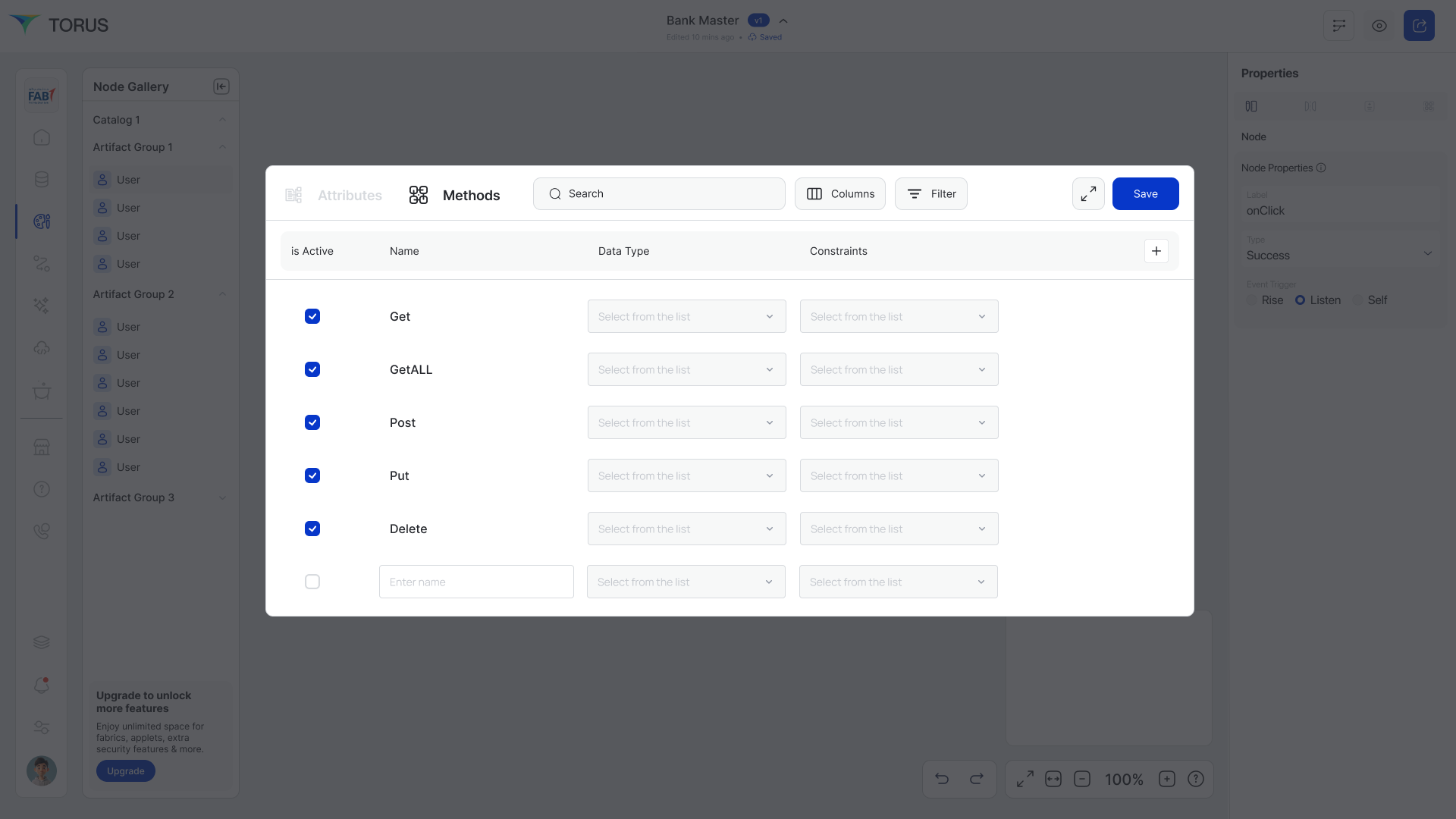
- Navigate to the Methods tab in the Node Properties panel.
- Enable or disable REST API endpoints for the selected table:
- GET (Retrieve a single record)
- GETALL (Retrieve all records)
- POST (Create a new record)
- PUT (Update an existing record)
- DELETE (Remove a record)
- Configure query parameters and conditions to refine API responses.
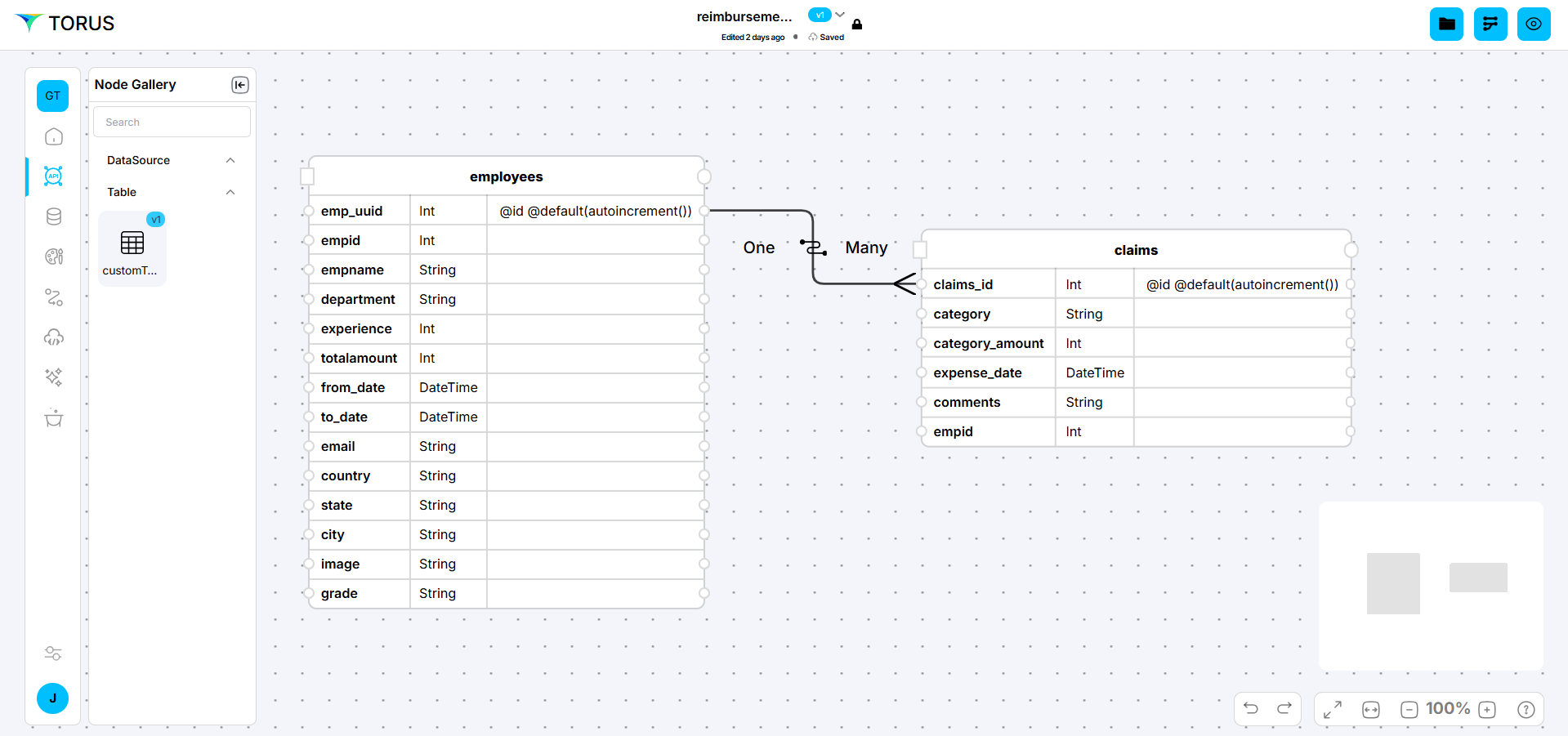
Establishing Relationships
- To create a one-to-one relationship, drag a field from one table to another.
- To change it to a one-to-many relationship:
- Click on the end of the connecting line where the 'Many' side should be.
- Choose Many from the menu.
Assembler
The Assembler screen is the central hub for application builds within the Continuous Deployment Fabric.
- Select App Group & Version: Choose an App Group, App, and Version.
- Initiate Build Process: With API Fabric integration, this step:
- Automatically creates defined tables in PostgreSQL.
- Generates the necessary APIs.
- Prepares the artifacts for deployment stages.
Always click Save after making any changes to your artifact to ensure updates are stored successfully.