User Interface Fabric
The UI Fabric provides the tools and capabilities necessary to design and build the user interface for applications.
Creating a New Artifact
To begin designing your UI, you must first create an artifact:
- Navigate to → 'Select artifact' > 'My Artifacts' > 'App Group' > 'App Name'
- Click 'Create Artifact'
- Enter Artifact Name → Click Save
This artifact serves as the foundation for your UI design.
Node Gallery
The Node Gallery provides various UI components categorized based on their functionality:
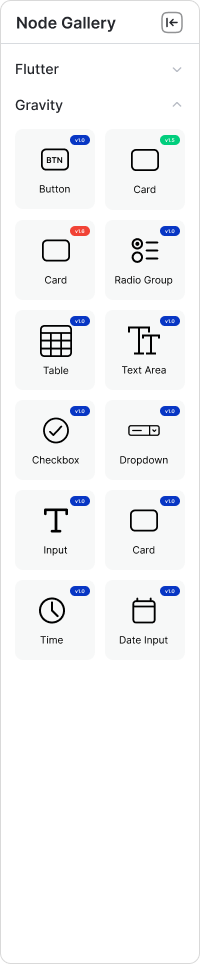
UI Components
Inputs
| Component | Description |
|---|---|
| Slider | Allows users to select a value within a range. |
| Timepicker | Enables users to select a specific time. |
| Switch | A toggle control for turning an option on or off. |
| Document Upload | Allows users to upload files. |
| Radiobutton | A single selection option within a group. |
| Document Viewer | Displays uploaded documents. |
| Table | Displays structured data in rows and columns. |
| Textarea | Multi-line text input field. |
| Button | Triggers actions when clicked. |
| Card | Groups related UI elements. |
| Group | Organizes multiple UI elements. |
| Checkbox | Select one or more options. |
| Column | Defines vertical layouts. |
| Text Input | A single-line text entry field. |
| Image | Displays an image. |
| Radio | Selectable option within a set. |
| Radio Group | Groups radio buttons. |
| Pin Input | Specialized numeric input field. |
Navigation
| Component | Description |
|---|---|
| Avatar | Displays a user's profile image. |
| Pagination | Controls navigation through multiple content pages. |
| Tabs | Switch between sections or views. |
Data Display
| Component | Description |
|---|---|
| List | Shows a collection of items. |
| Icon | Displays visual indicators. |
| Datepicker | Allows date selection. |
| Dropdown | Provides a selectable list. |
| Text | Displays static text. |
| Label | Descriptive text for inputs. |
| Chart | Displays graphical data. |
Feedback
| Component | Description |
|---|---|
| Progress | Shows operation progress. |
The "v1" badges indicate component versions.
Steps to Create a UI in Torus
Create Artifact
- Navigate to "Select artifact" > "My Artifacts" > "App Group" > "App Name".
- Click "Create Artifact" to add a new artifact.
- This artifact will serve as the container for your UI design.
Draw Diagram (UI Structure)
-
Open the UI Fabric workspace.
-
Use the Node Gallery to select and drag UI components onto the canvas.
-
Available components include:
Inputs:
slider,timepicker,switch,documentupload,radiobutton,documentviewer,table,textarea,button,card,group,checkbox,column,textinput,Image,radio,radiogroup,pininput.Navigation:
avatar,pagination,Tabs.Data Display:
list,icon,datepicker,dropdown,text,label,chart.Feedback:
progress. -
Arrange and connect the components to define the UI layout and structure.
-
Use the "Group" node to organize input fields, ensuring the "Name" matches the Data Fabric's target name for data binding.
-
Configure the properties of each component (e.g., labels, sizes, data bindings).
Configure Events
- Open the Logic Center.
- Navigate to the "Actions" tab, specifically the "Events" section.
- Use the left-side menu to select the artifact and specific nodes or their properties.
- Add events to be emitted from UI components (like buttons, switches, etc.).
- Define how these events will push data to queues (e.g.,
"Success","Failure","Suspicious"). - Set custom statuses for more granular event handling.
Set Orchestration
- Click the "Orchestration" icon (top-right corner).
- Map source data to target data.
- Transform data as needed (e.g., rename fields, create combined fields).
- Ensure data flows correctly between the UI and backend services.
Grouping UI Elements
The Group component acts as a canvas for placing other UI elements. It is often used to organize and align inputs.
- Drag UI components into the Group.
- Update the Node Properties.
- Ensure the Group name matches the corresponding Data Fabric Target.
Example: If the Data Fabric's Target Name is
employee_details, the Group Name should also beemployee_details.
Orchestration in UI Fabric
In Torus UI Fabric, orchestration manages the interaction between the Data Fabric (DF) and UI. It enables search integration at the node, form, and field levels, ensuring data flows correctly across the application.
Always click Save after making any changes to your artifact to ensure updates are stored successfully.