Daily Expense Page for Manager
Daily expense page has the table that shows columns for ‘Expense Name’, 'Category', 'Amount', 'Date' of the daily expenses with ‘Check box’ as the first column for each row along with the Approve and Reject button on the top right. Manager can select one or multiple check box to approve/reject the claims submitted by the Manager.
Always click Save after making any changes to your artifact to ensure updates are stored successfully.
Create an Artifact
Follow the steps below to create a new artifact
- Navigate to the Dashboard → UI Fabric
- Open the Artifact section by clicking the "Artifact" tab in the navigation bar.
- Navigate to the application path: My Artifacts → Global-App-Group → reimbfast-app
- Click the (+) button at the bottom-left to create a new artifact.
- Enter a unique name for the artifact (e.g., Daily Expense Page for Manager).
- Click Create Artifact to confirm.
- Click Save to save the artifact and close the window.
Design a visual diagram
Designing the Layout
This page consists of a table to display daily expenses.
Create a Table
-
Add a Table Node
- Drag and drop a Table Node to the Group Node.
-
Edit Table Node Properties
- Right-click the Table node and select Edit Node.
- Update the fields as required.
- Enable:
- Pagination
- Table selection
- Table settings
- Table sorting
-
Table Positioning
- Column Start: 1
- Column End: 13 (Full width of the group)
Define Table Columns
- Drag and drop multiple Column nodes into the Table node.
- For each Column node, right-click and edit its properties to set the "Label" to match the column headers visible in the screenshot:
- claim id
- expense name
- claim category
- category total amount
- expense date
- status
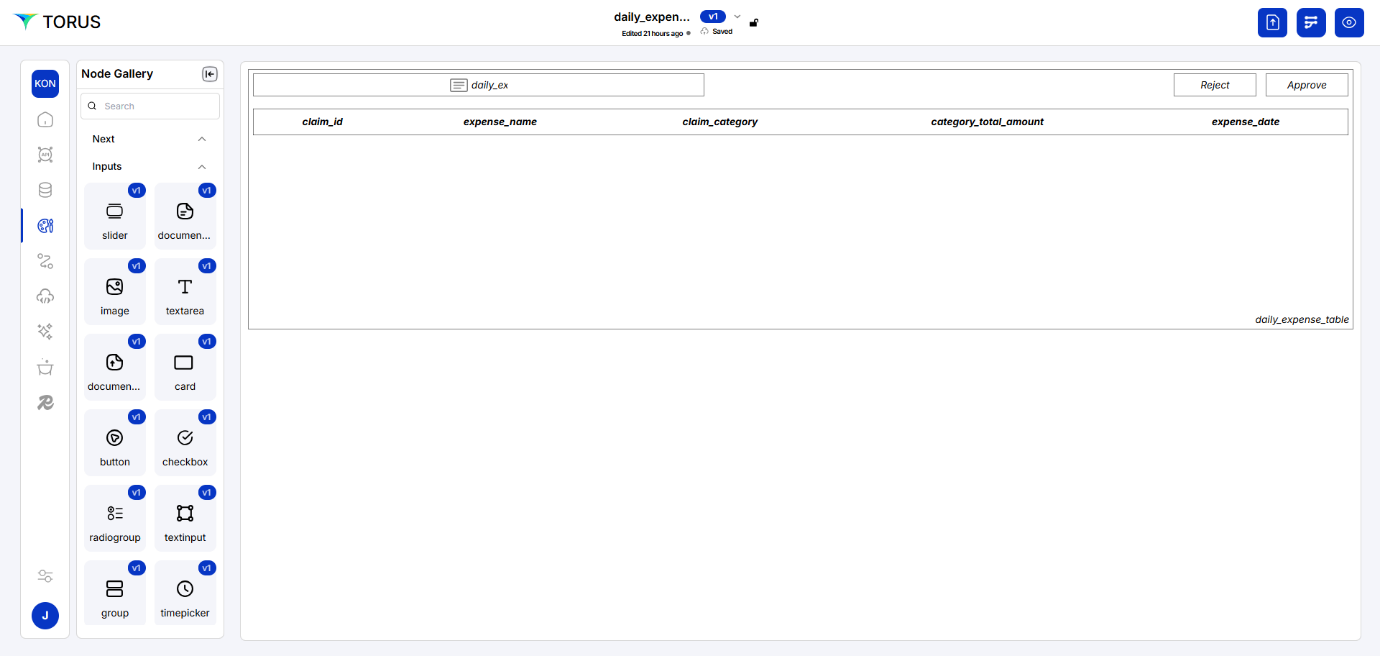
Add Buttons Approve and Reject button is added in this page so that manager can approve or reject the claims accordingly.
- Drag and drop a Button Node to the canvas.
- Right-click → Edit Node
- Set Label to: "Approval", "Reject"
Orchestration
Orchestration manages the interaction between Data Fabric (DF) and UI components. It enables Node-level data flow,Form-level search and Field-level integration. Ensures seamless data movement and UI behavior across the app.
Mapping the get claims and daily expenses table as below. UI components on the right side and required fields are in the left side.
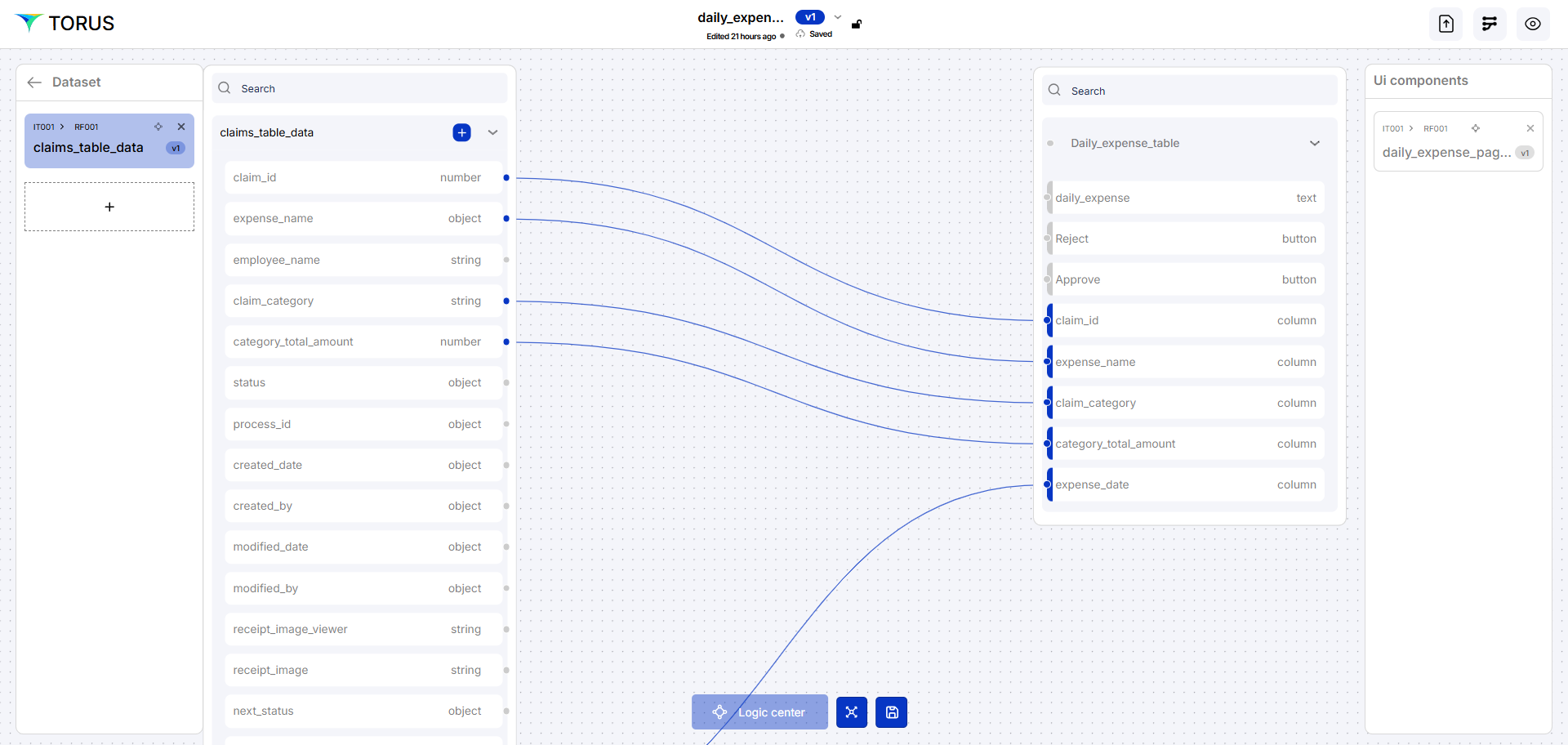
- The "get_claims" is a dataset used as the data source for the "Daily Expense" form. This dataset contains information about expense claims.
Logic center
Logic Center allows the developers to define and manage all the business logic, interactions of an application, and permission level of the Manager
To organise the functioning of the application by configuring Security, Events, Actions, Rules, and Custom Code (SEARC)—all in one place.
For each button in the table, we have to define the action of the button which will be done in Logic Center. Here if we click one button, a form should be loaded to show the Artifact event which will load a page with its properties. Another button should add a additional form to define ‘daily expenses’ or ‘offsite expenses’.
Click on the UI component (Daily Expenses page for Manager) and click on the right hand side UI component which will enable the Logic center, once it is enable click on the same to open.
Click Add on the left side and click on the Events button at the bottom.
After clicking Add will appear
After clicking onClick will appear
Right click on ‘Onclick’ to get the properties on right side. Click on Riselisten
Select the appropriate values in the drop down
Update the properties as applicable. Click Ok
Organization matrix is a concept in Torus where roles were defined in control centre. Under the Logic center in the Security tab, we will map the Manager roles accordingly
Rule Engine – It is required to fetch data from one or multiple table depending on the given condition/rule. It adds rule to a component.
Select the required table from the left hand side and click on the Rule Engine
To add a rule to the Expense table on this page, first navigate the left-side menu in the Logic Center and select the 'Expense' table. Once selected, click the 'Rules' button located at the bottom of the Logic Center interface. This will open the Rule Engine or Expression Editor, allowing you to define your data processing rules.
Building the Rule Logic
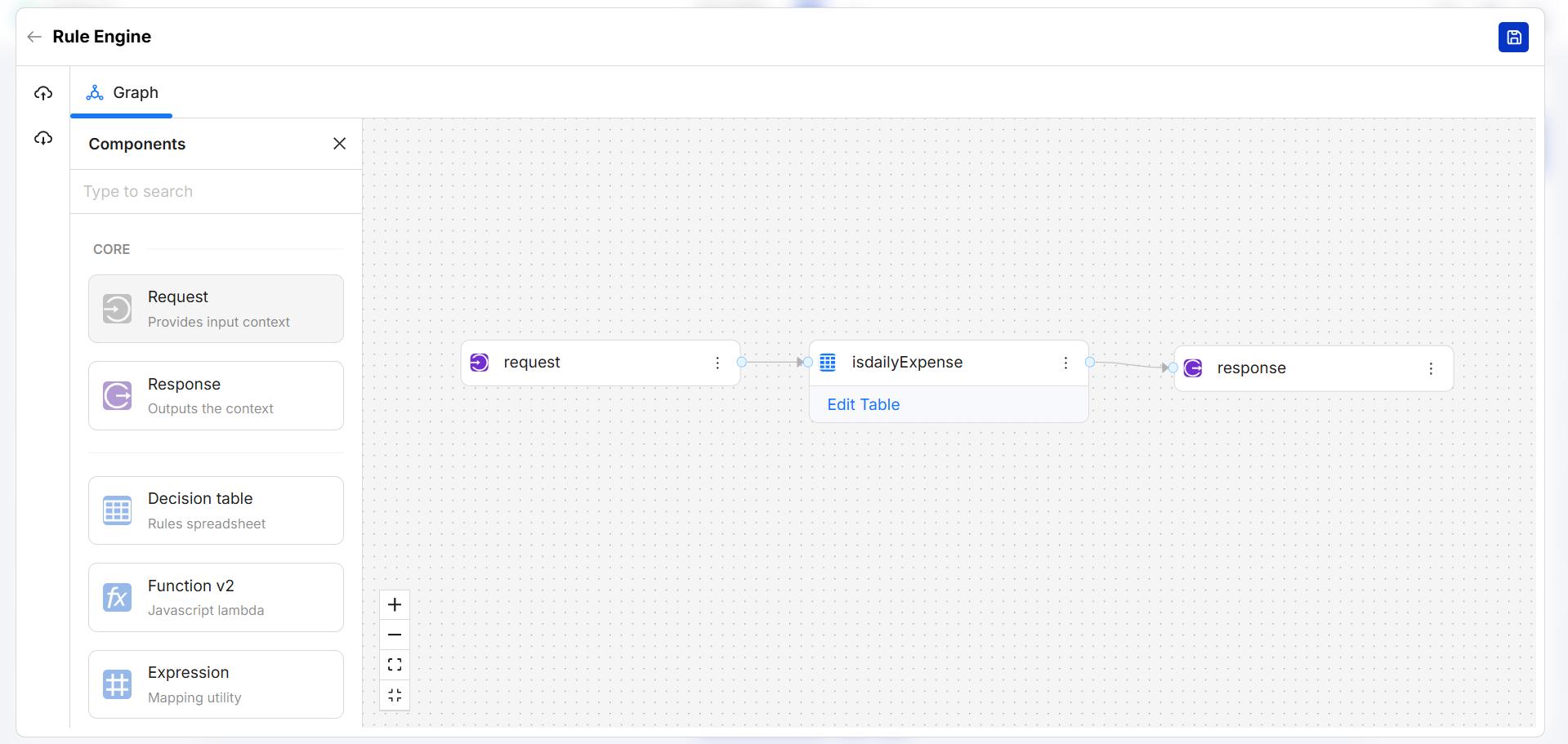
- Drag and drop "Request" node from the "Components" panel to the design canvas. This node will represent the data input from updated from daily expenses table.
- Drag and drop "Decision table" node to the design canvas. This node will contain your logic for determining whether the expense is "Daily Expense.", if ‘yes’ we are setting the value as ‘true’ in response. (refer screenshot)
- Drag and drop "Response" node to the design canvas. This node will give the filtered data as output.
Connect the Nodes
- Connect the output of the "Request" node to the input of your "Decision table" This sends the incoming expense data to your rule logic.
- Connect the output of "Decision table" to the input of the "Response" node. This sends the data that meets "Daily Expense" criteria to be displayed.
Configure the Decision table
- Decision Table: By editing the decision table, we would open its configuration by double-clicking or clicking "Edit Table" button as seen in your image.
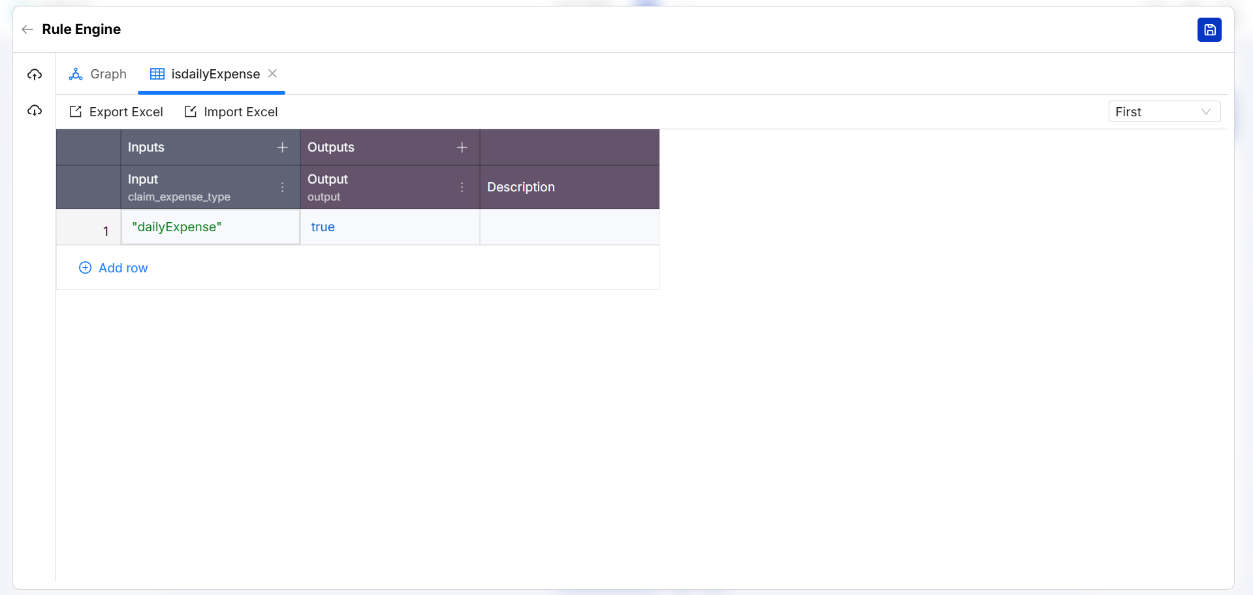
- Here, we can define rules. For example, you might have a column that checks the claim_category field in the data. We can then create a rule that says if claim_category is equal to 'Daily Expense' then the output will show the record.