Offsite Expense Request Screen
This form is to collect data for offsite Expense like 'Expense Name', 'Expense Date (from/to)', Category', 'Amount', Attachment', 'Claim Reimbursement') with a 'Add' and 'Clear' button. Pivot table is also shown at the bottom of this form so that category can be summarised and the amount will be added in the Amount column above.
Always click Save after making any changes to your artifact to ensure updates are stored successfully.
Create an Artifact
Follow the steps below to create a new artifact
- Navigate to the Dashboard → UI Fabric
- Open the Artifact section by clicking the "Artifact" tab in the navigation bar.
- Navigate to the application path: My Artifacts → Global-App-Group → reimbfast-app
- Click the (+) button at the bottom-left to create a new artifact.
- Enter a unique name for the artifact (e.g.,Offsite Expense Request Screen).
- Click Create Artifact to confirm.
- Click Save to save the artifact and close the window.
Design a visual diagram
Designing the Layout and Adding Input Nodes
The page consists of various input fields which allows users to enter offsite expense details. This page is similar to the "Daily Expense" page, along with couple of additional informations.
Add Input Fields
Drag the following input nodes from the Node Gallery onto the design canvas and position them as shown in the screenshot.
-
Text
Use Text nodes to create the labels for each input field. Set the "Label" property of each Text node to- Expense Name
- From Date
- To Date
- Claim Category
- Amount
- Attachment
- Claims
- Comments
- Manager Comments
-
TextInput
Use TextInput nodes for the following fields- Expense Name
- Claim Category (drop down)
- Amount
- Claims
- Comments
- Manager Comments
-
Date Picker
Use Date Picker nodes for both From Date and To Date. This is the key difference from the "Daily Expense" page, indicating the duration for offsite expenses. -
DocumentUpload
Receipt image (documentUploader) Allows user to upload documents relevant to the claim.
Positioning and Sizing
Arrange the input nodes using their positioning properties (column start, column end, row start, row end) to match the layout in the screenshot. Adjust the column end property to control the width of each input field.
Add Buttons
Drag and Drop Button nodes from the Node Gallery to the design canvas and position them at the bottom
- Buttons
- Switch - Enabling this will allow the user to write any comments if required in comments field.
- Clear - Allows the user to clear the form.
- Add - Allows the user to submit/add the updated form
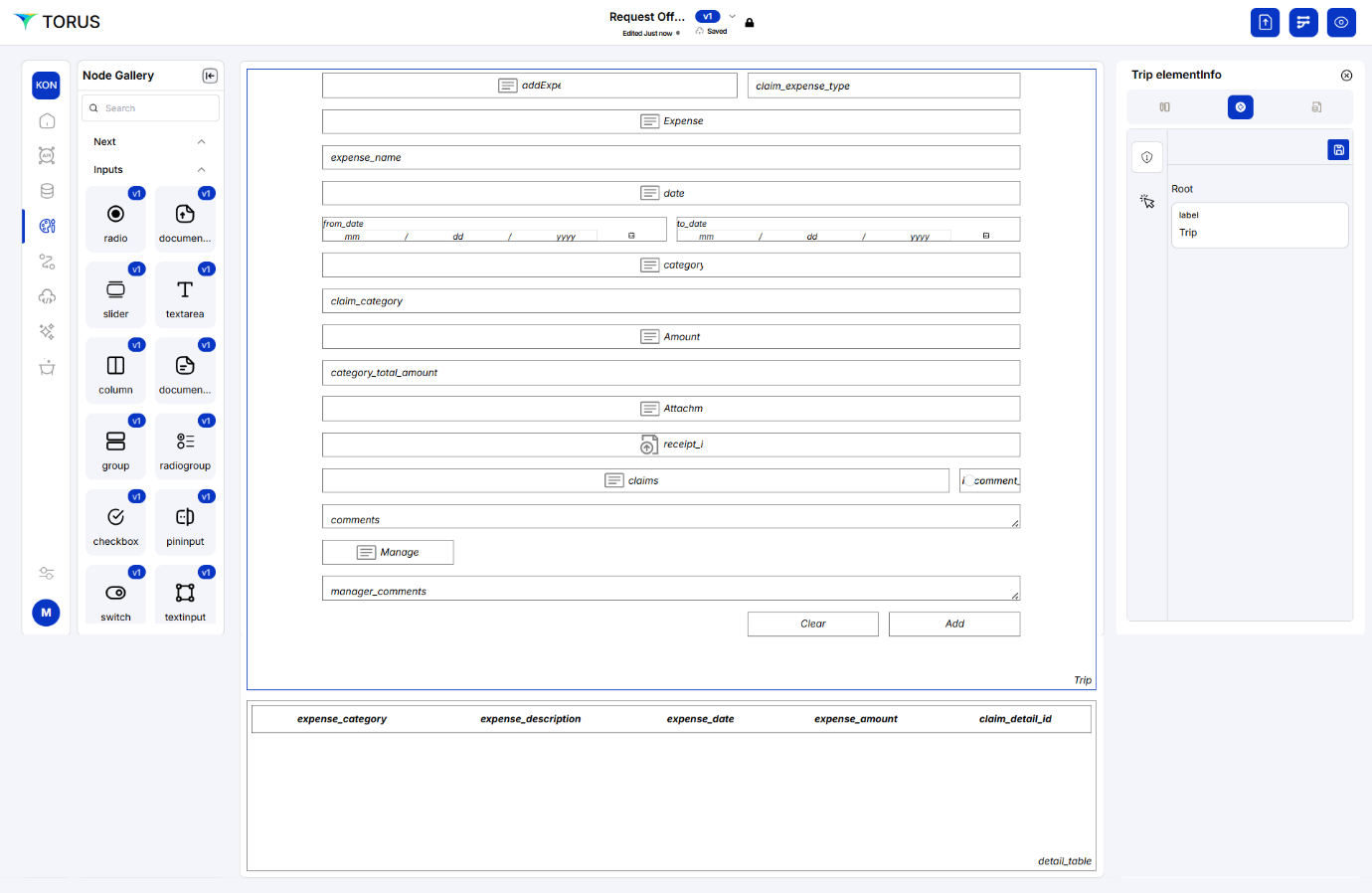
There is a table at the bottom of the page that helps to add the details of the category which will summarize and gives the total value to the form above in the Amount column.
Pivot option can be enabled in the table node that allows us to enter the data in the table to do calculations, in another term enabling pivot option makes the table editable. While enabling pivot in the node, ‘+’ and ‘saveall’ button will be appear in the application at User interface which does the function accordingly.
Orchestration
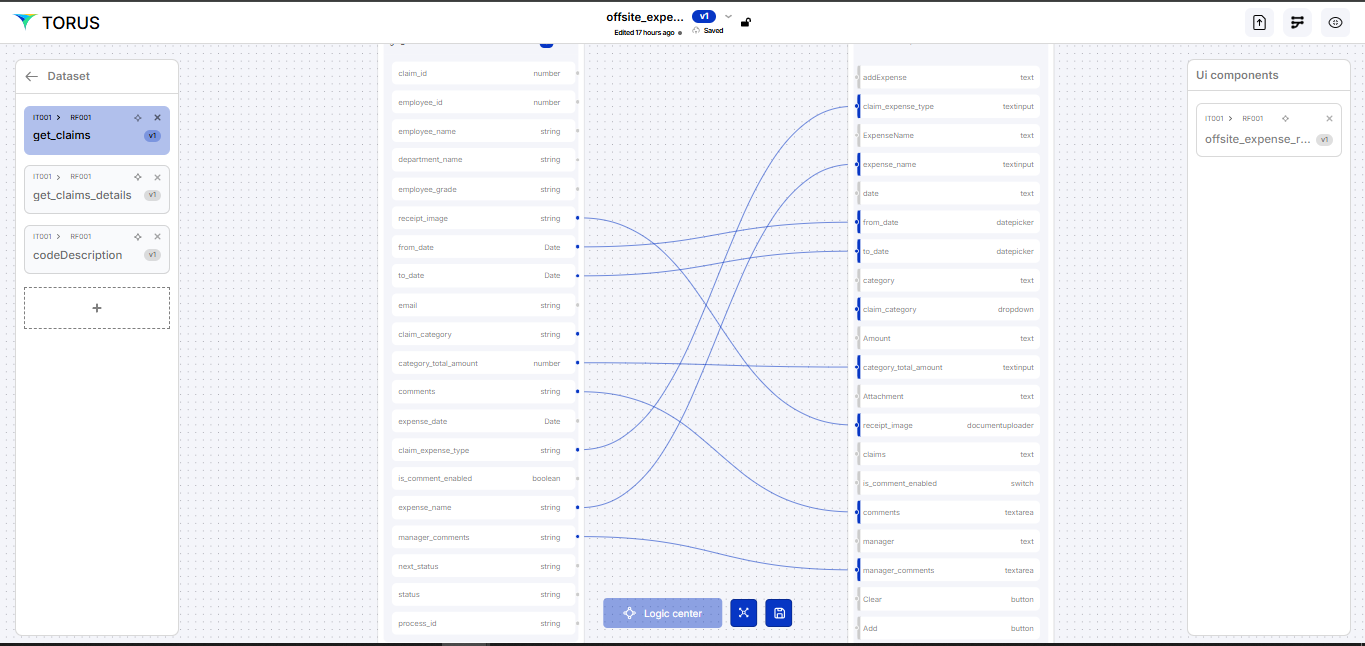
Mapping the get claims and daily expenses table as below. UI components on the right side and required fields are in the left side. (Refer here)
- The "get_claims" is a dataset used as the data source for the "Offsite Expense" form. This dataset contains information about expense claims (refer below screenshot).
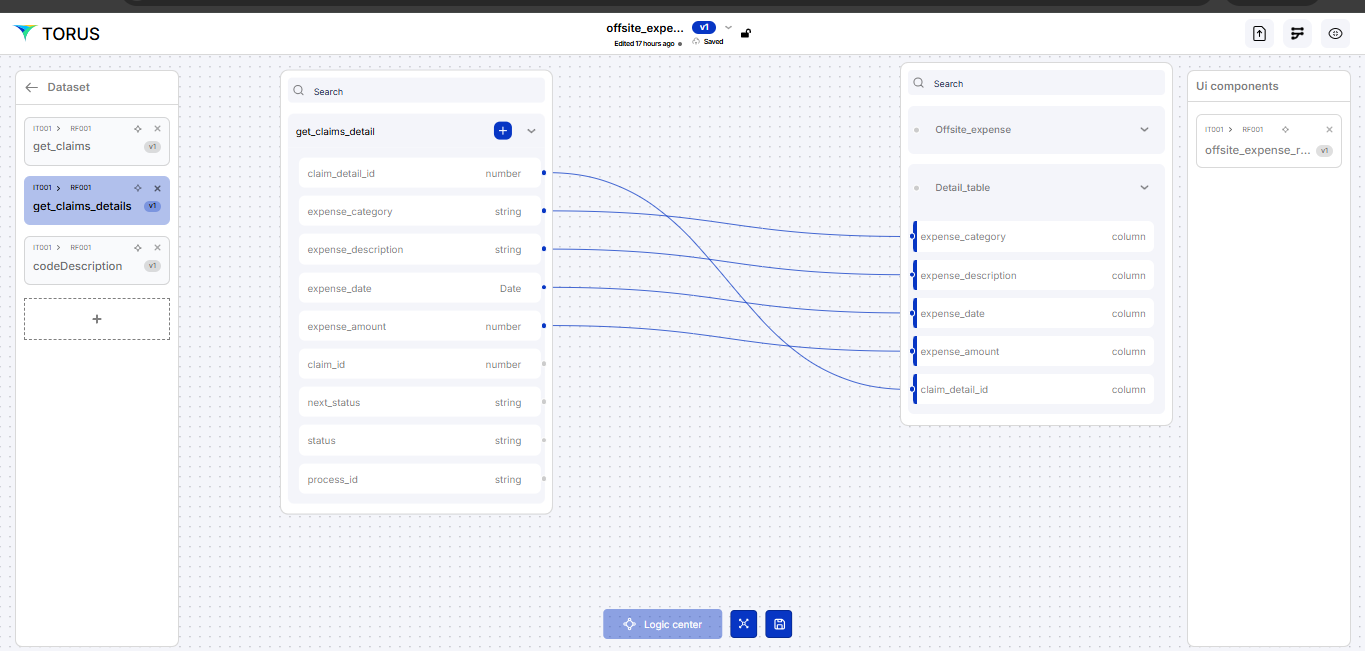
- The "get_claims_details" is a dataset used as the data source for the "Offsite Expense" form. This dataset contains information for pivot table information (refer below screenshot).
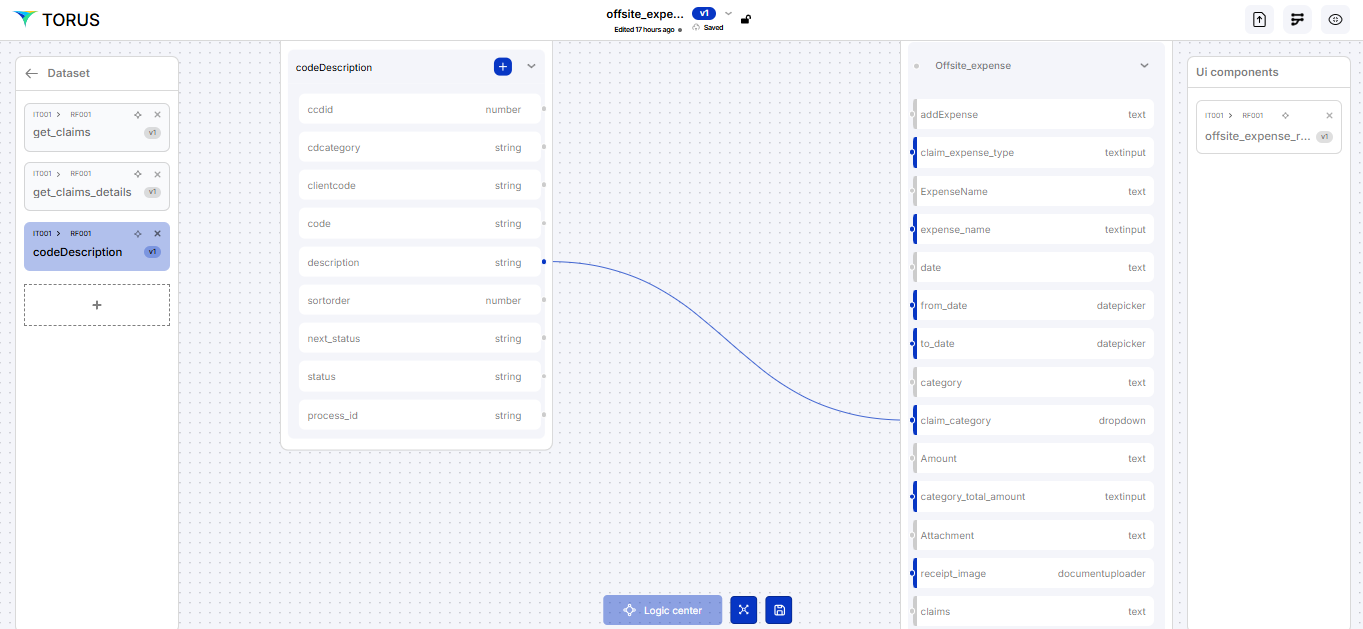
- The "codeDescription" is a dataset used as the data source for the "Offsite Expense" form. This dataset contains drop down values to appear in category field (refer below screenshot).
Logic center
We have to add Events for all the below nodes.
- Add Button – It allows the user to Save the data and update the table
- Cancel Button - It allows the user to clear the data in the input fields on the screen
- Switch (is command enabled) – It allows the user to enable the comment field so that the user can give comments if required.
- Pivot table (Detailed table) - This is a editable table which allows the user to enter the expenses for multiple category that will sum up and give value to the above total as total expenses.
The Logic Center allows to define the actions that occur when users interact with UI elements (like buttons and switches) to manipulate data within the application if required.
Accessing the Logic Center: Choose the UI component on the right side which enable to logic centre, click on it to open.
Click on Events
- onClick: Triggered when a button is clicked.
- onChange: Triggered when the value of an input field (including a switch) changes.
- Onsaveall: Triggered when pivot table is updated.
Adding Events to Add Button
- Select the Button: In the Logic Center, select the "Add" button.
- click Events: Events Screen will load with two events as onClick and On Focus
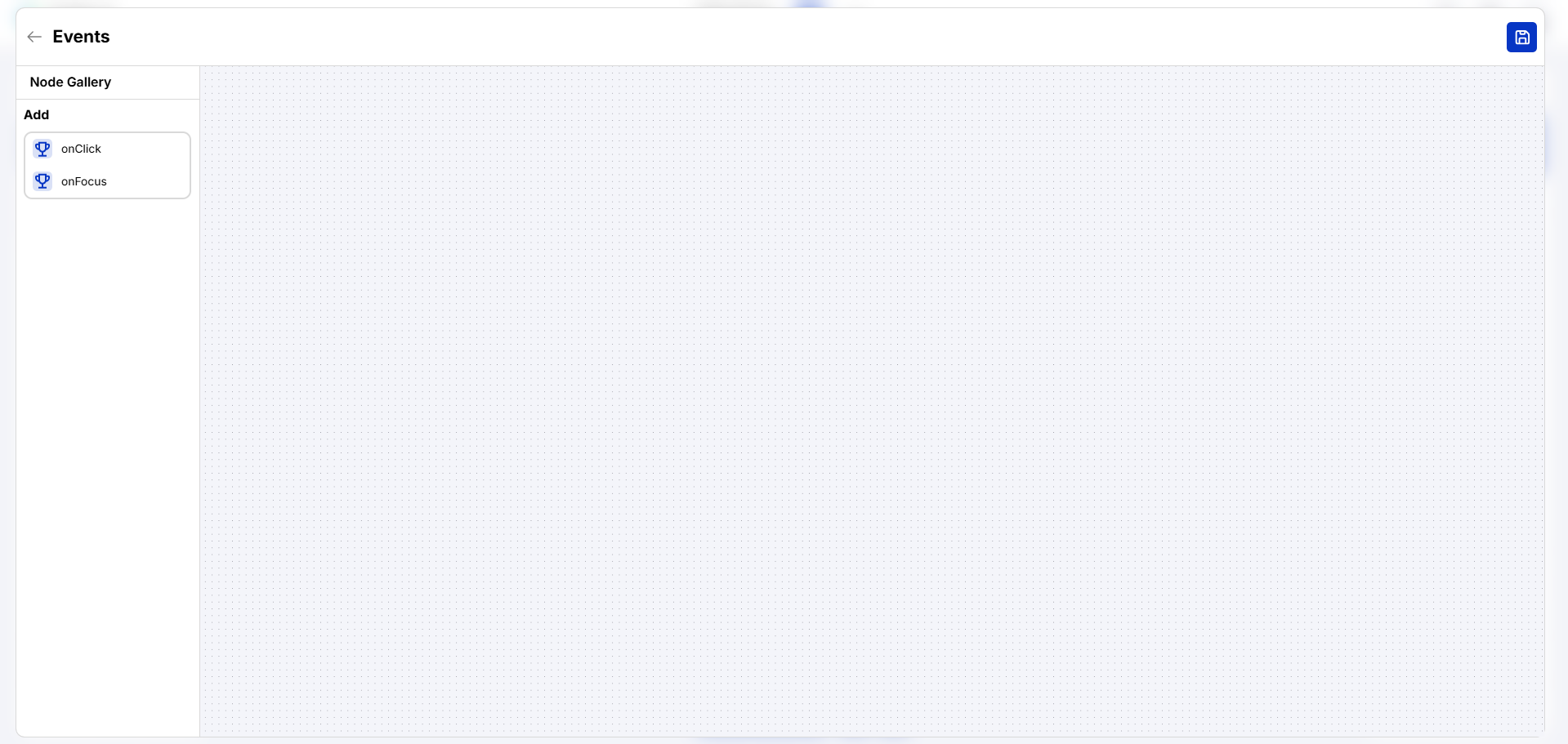
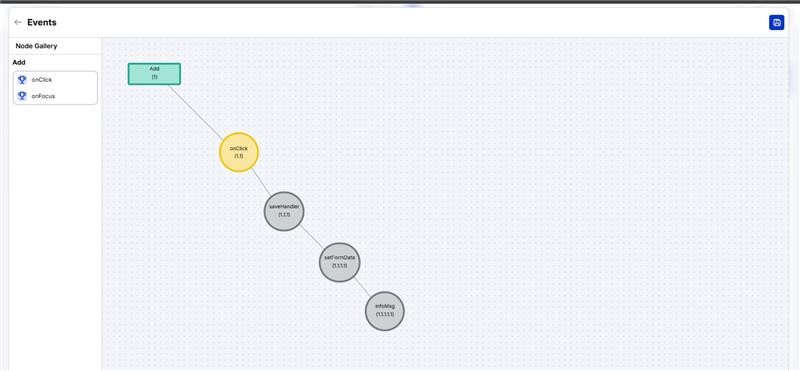
- We need 3 things to be done ‘onClick’ button. (i) update database, (ii)info (pop up message/acknowledgement), (iii) refresh two pages (Home Screen and offsite Expense Screen both using this field)
- Drag and drop onClick button to the canvas, you will get Add button and onclick node in the canvas
- Right click on onClick node and edit node, we will the node property
- choose ‘Save Handler’ in the nexthandler field which allows the data to get saved
- then right click on the Save handler, click ‘setformdata’ then click choose infomsg
- rise –allows to do the next action
Adding Events to the Switch
- Select the Switch: In the Logic Center, select the Switch button names (is_comment_enabled).
- Add an Event: Add an event handler.
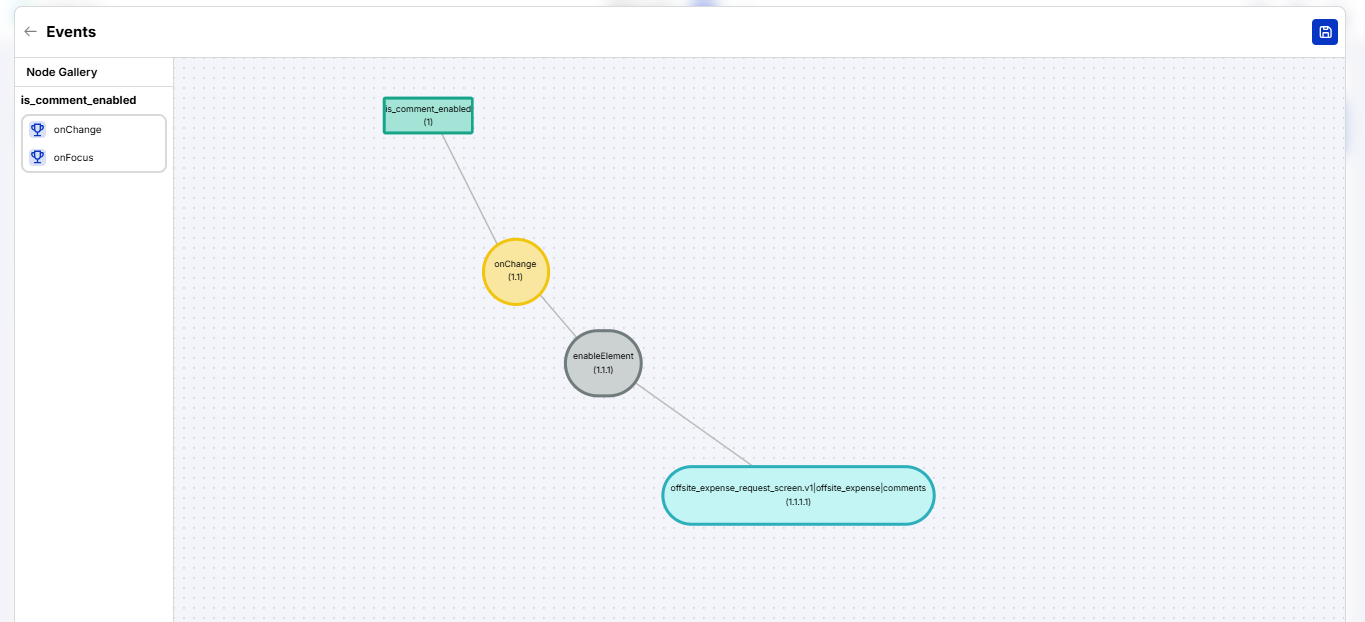
- Choose the Event: Select the onChange event for the Switch, this event will be triggered whenever the switch's state changes (from on to off, or off to on).
- Right click edit property will open on the right side, click on ‘enable element’ select riselisten and choose the options as applicable.
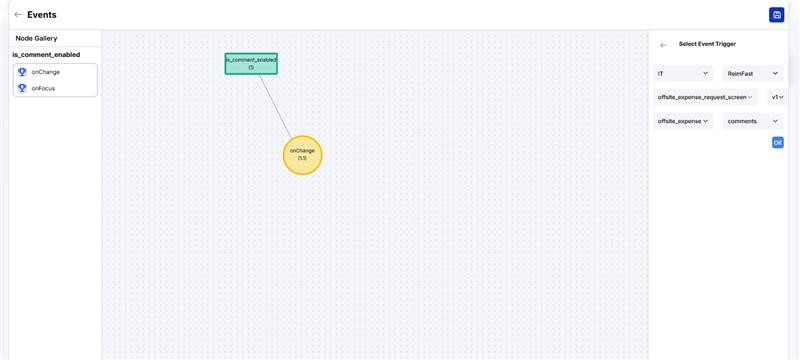
- Right click edit property will open on the right side, click on ‘enable element’ select riselisten and choose the options as applicable.
Clear Button
Clear button will clear the updated field in the form
Custom Code Editor
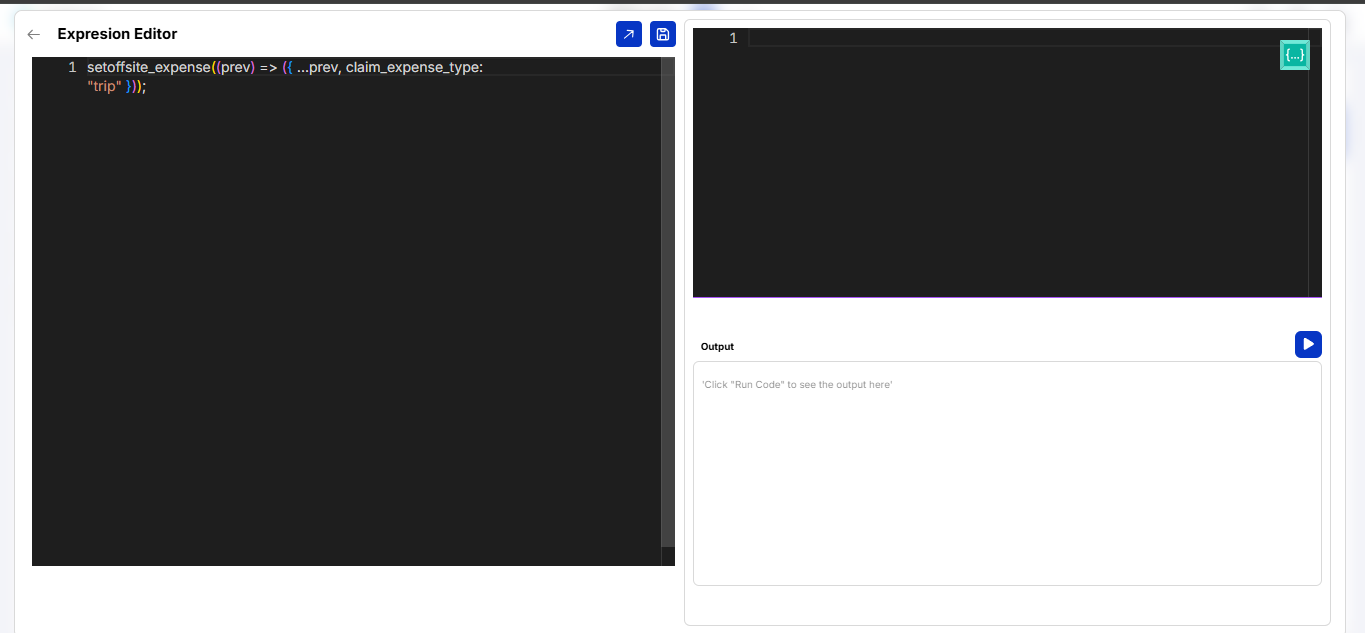
This will decide whether the data should fall under ‘Daily expenses’ or ‘offsite expenses’.
To Add Extra Field while entering the data we need a code Editor.